
Local customers usually search on Google before they call, visit, or book anything. A complete Google Business Profile setup helps them see your address, hours, reviews, photos, and services in one place, making decision-making faster and easier.
Earlier, this tool used the name Google My Business profile, and many people still search with that phrase. Today, the name is Google Business Profile, yet the goal remains the same: give your business a trusted, free spot on Google Search and Maps. The official page to get started with Google Business Profile explains this clearly.
Why Google Business Profile Setup Matters for Local SEO
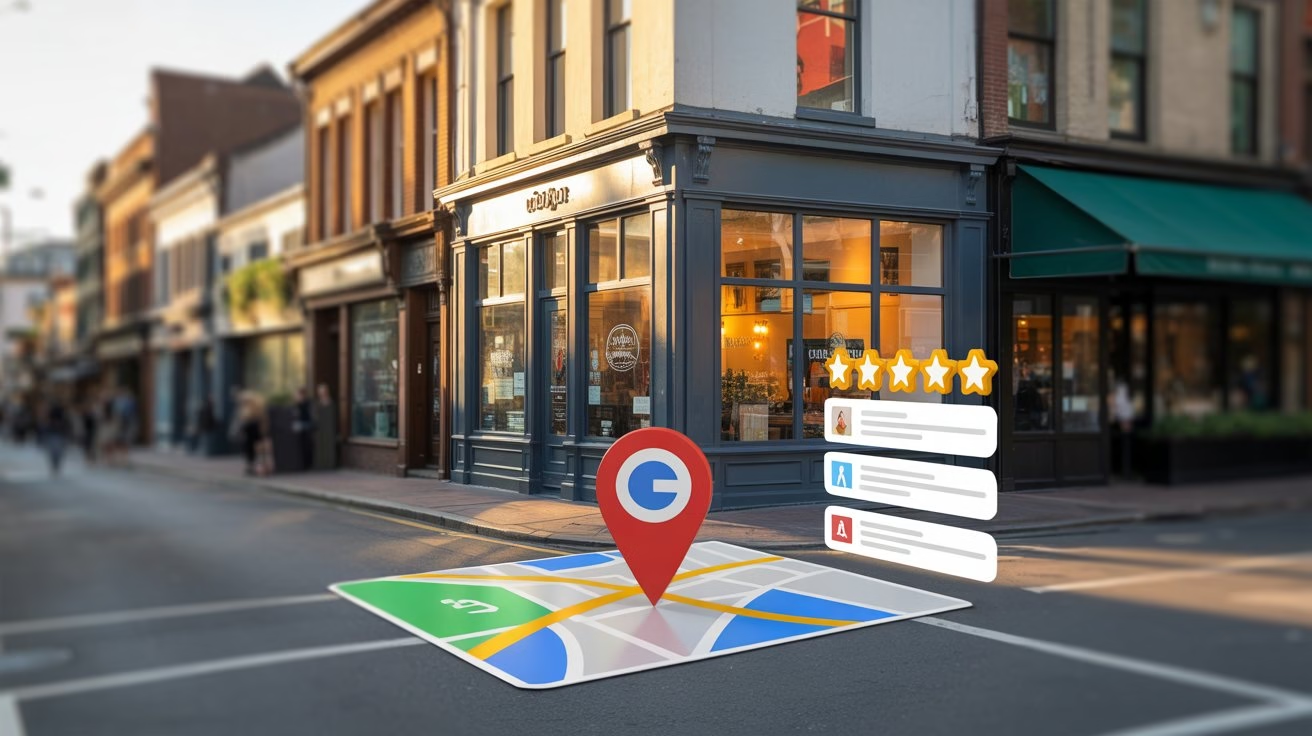
A well-built profile does much more than display basic contact details. It acts like a small website for high-intent local searches, and very often it appears before your main domain in results. Therefore, careful setup directly supports rankings, clicks, and visits, as Google’s own local ranking guidelines explain.
- Connects you with nearby searchers at the right time:
When someone types “near me” or adds a city name, Google checks local listings to decide which businesses to show. A complete Google Business Profile gives you a better chance to appear for those ready-to-act searches. Google’s own tips to improve your local ranking on Google mention complete and accurate information as a key factor.
- Improves the quality of leads:
As a result, clear categories, services, and attributes align your listing with the right queries. As a result, calls and visits usually come from people who already fit your location, price range, and service type.
- Builds trust through reviews and photos:
Ratings, comments, and real photos shape your reputation. Many users compare several profiles, so an active Google My Business profile with fresh images and replies often feels safer than one that looks abandoned. The Google Business Profile Help Center also stresses how important reviews and photos are for customer trust.
- Supports your site, ads, and Discover presence:
Helpful content on your website, combined with a strong profile, sends good E-E-A-T signals. You can follow these SEO tips for consistent Google rankings to keep your on-site content aligned with Google Search Essentials.
Many small business owners wonder whether Google Discover directly improves their Google Business Profile. These are actually two different things.
- Google Business Profile appears in Search and Maps when people look for local services. Google Discover shows helpful web pages based on a user’s interests, such as blog posts and guides. Discover cannot show your profile listing, but it can show your website articles that explain your services.
- When you publish helpful content with large, clear images on your website and connect it to a strong Google Business Profile setup, both assets support each other. The profile wins local searches, while your articles can bring extra visits through Discover.
Prepare Key Business Details Before You Start
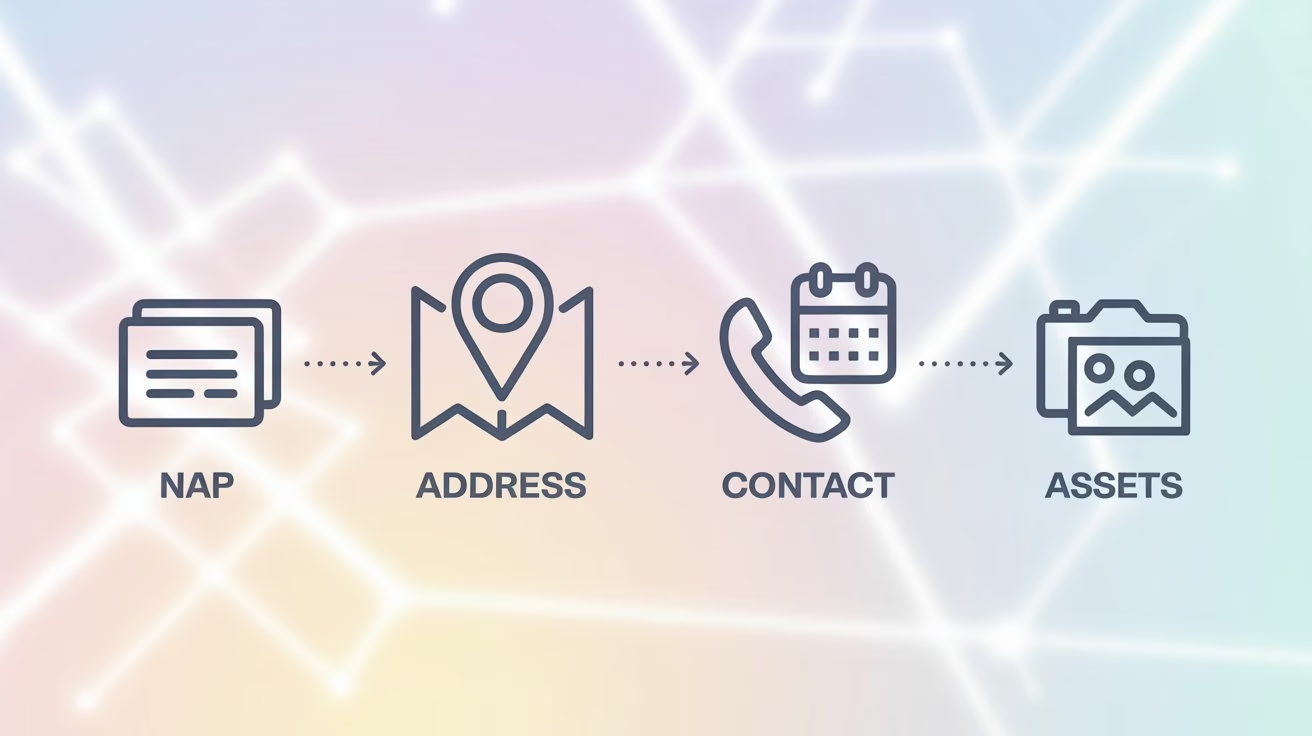
Preparation saves time and reduces mistakes. It also improves consistency, and Google clearly highlights complete and accurate information as an important local ranking factor, as explained in its local ranking guidelines.
- Fix a standard business name and NAP format:
Decide on the exact version of your brand name and use it everywhere. Then keep your Name, Address, and Phone number (NAP) identical on your website, profile, and social pages so Google connects all signals to one business.
- Confirm address and service areas:
First, write down your full street address if you have a physical location. For service-area businesses, list the cities or regions you cover. This clarity reduces leads from areas where you cannot actually serve customers.
- Gather contact details and booking links:
Keep your main phone number, email, website URL, and any appointment links ready. Then you can turn on buttons like Call, Directions, Website, or Book without pausing setup to search for details.
- Collect short messages and visual assets:
Prepare a short business description, a logo, and a few good photos. Later, these assets help you fill the “From the business” section and upload visuals that match your brand on all platforms. If you also want your site’s images to perform well, Google’s image SEO best practices explain how to use alt text, size, and context simply.
Create or Claim Your Google My Business Profile
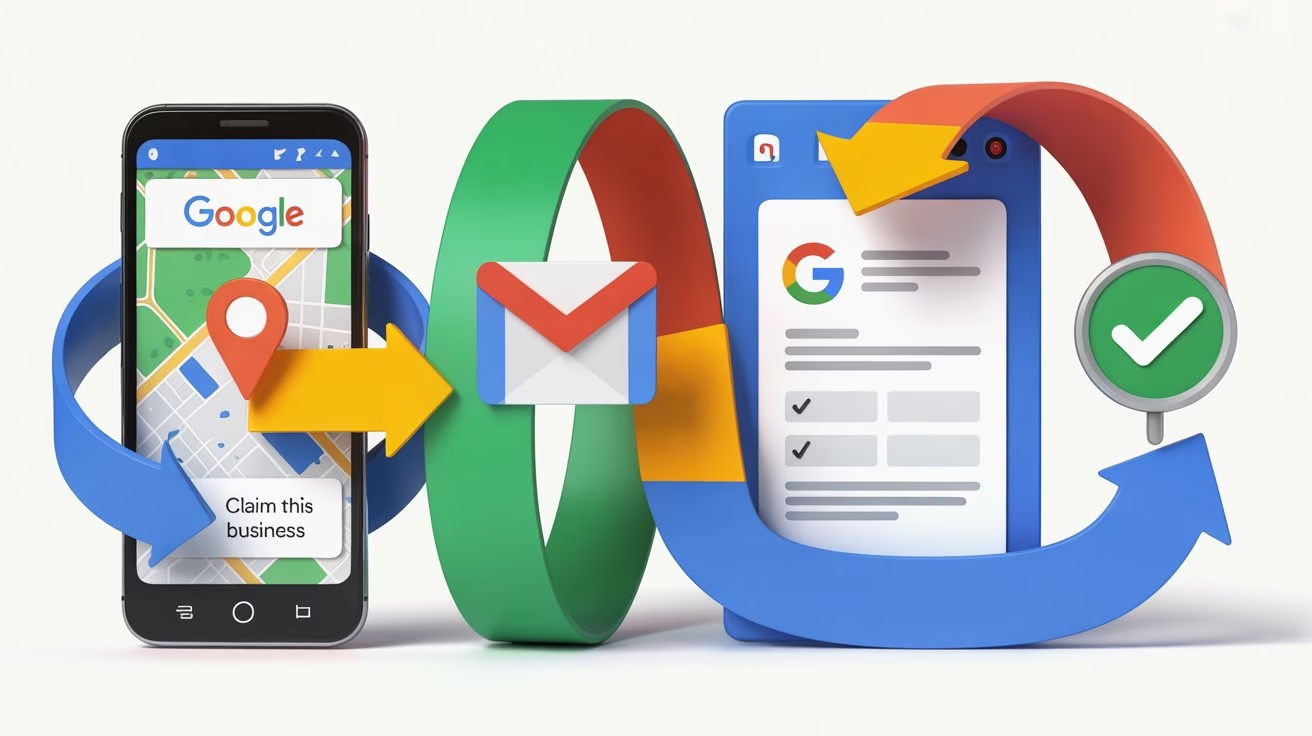
Next, you either claim an existing listing or create a new one. Many businesses already appear in Google Maps, so this step protects your presence and gives you full control. Getting listed on the Google Business Profile page also guides you through the basics.
- Search Google Maps first for an existing entry:
Type your business name and city into Maps. If a listing already exists, choose “Claim this business.” This way, earlier reviews and location strength stay attached to your official Google My Business profile instead of floating around without an owner.
- Use a work-ready Google account:
Sign in with a business email or a dedicated admin account. Later, you can add managers and owners through roles, which is safer than sharing one personal login across the whole team.
- Create a fresh profile when nothing appears:
When no listing exists, visit the Google Business Profile site and follow the prompts to add your business. Then fill in name, category, address or service area, and contact details carefully so verification goes smoothly. For a quick recap, you can also check this simple tutorial on how to set up a Google Business Profile.
- Complete verification and lock ownership:
Google may ask for a postcard, call, email, or video check. Follow the instructions, respond quickly, and keep any confirmation messages. After verification, you can edit your profile directly from Search and Maps.
Optimise Categories, Description, and Contact Info
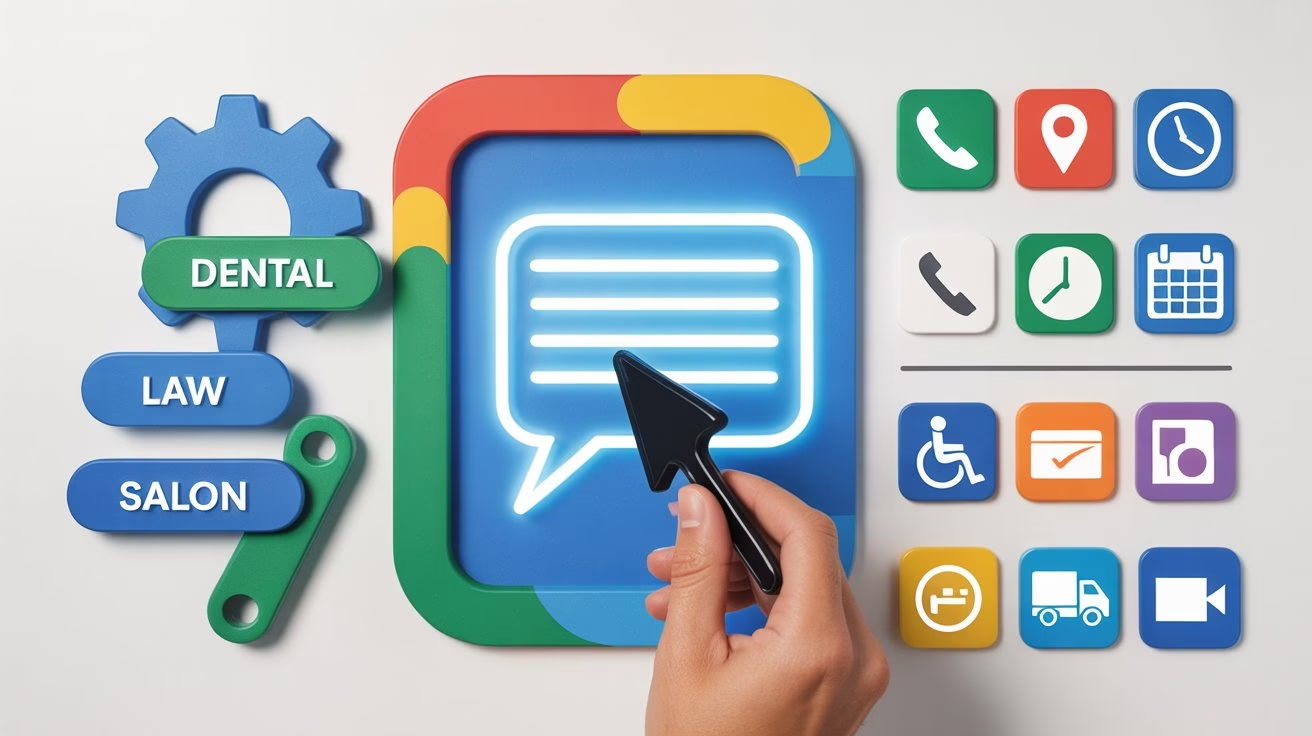
Once the profile exists, optimisation turns it into a strong local asset. Google explains that relevance, distance, and prominence all play a role, and complete details help with each factor.
- Choose a clear and specific primary category:
Select the category that best matches your main service, such as “Family law attorney” or “Dental clinic.” Then add a few secondary categories for extra offerings so Google understands your full range.
- Write a simple, benefit-focused description:
In the “From the business” section, explain who you help, what you do, and where you work. If you offer this as a service, you can mention Google Business Profile setup once in a natural sentence without stuffing keywords.
- Fill every contact and location field:
Enter phone number, website, business hours, short name, and appointment links. Complete information helps visitors act immediately instead of switching to competitors due to missing details.
- Set attributes that answer common questions:
Turn on attributes such as wheelchair access, online appointments, delivery, or payment methods where they apply. These tags reduce doubts and save time for both staff and customers.
If your website design still feels dated, this guide to modern liquid web design can help you align your site experience with the professional image of your profile.
Use Photos, Products, and Posts to Stand Out

Now the profile needs life. High-quality photos, products, and posts make the listing look active and real. Google also encourages clear visuals and engaging updates, which support both local results and Discover-ready pages.
- Upload sharp exterior and interior photos:
Add a clear photo of your storefront so visitors can recognise it from the street. Then include interior images that show the environment, cleanliness, and layout. These pictures help people feel more relaxed before visiting.
- Show your main products or services:
Next, use the products or services section to list key offers with short descriptions and prices where appropriate. This simple catalog lets people compare options instantly instead of guessing from a name alone.
- Post regular updates, offers, and helpful tips:
Create short posts about events, seasonal offers, changes in hours, or quick advice. Fresh posts remind visitors that your Google Business Profile is active and give them reasons to click or call.
- Use large images on your website for Discover:
When your site content supports the profile, use images at least 1200 pixels wide and allow large previews. The official Get on Discover documentation explains how large images and people-first pages help content appear in Discover.
You can see these ideas in action in product-style posts, such as the article on the EMO desktop pet robot review, which already uses large, clear visuals and detailed information.
Manage Reviews, Q&A, and Messages with Care

Reviews, Q&A, and messages show how you handle real-world situations. Thoughtful replies and clear answers demonstrate expertise, experience, and responsibility, which match what users and algorithms expect from trustworthy businesses.
- Ask happy customers for honest reviews:
After a good interaction, share your review link and request feedback in simple words. Steady, natural review growth looks healthier than sudden bursts and gives a balanced picture of your service.
- Reply to every review in a personal tone:
Thank people for positive comments and mention a detail from their message when possible. For critical feedback, acknowledge the problem, show empathy, and offer a clear next step, such as a call or visit.
- Use simple templates as starting points:
For praise, you can write: “Thank you for sharing this experience. The team appreciates your kind words and looks forward to serving you again.” For complaints, you can write: “Thank you for explaining what happened. This experience falls below our standards, and the team will contact you to resolve it.”
- Watch Q&A and messages regularly:
Check for new questions and chat messages at least a few times each week. Fast, accurate answers often turn casual searchers into confirmed appointments, especially when they contact you from your Google My Business profile.
If you want to understand user psychology more deeply while you write replies and posts, the Neuromarketing Techniques for Marketers article gives strong ideas you can apply to local content and conversations.
Track Insights and Run a Simple Monthly Audit
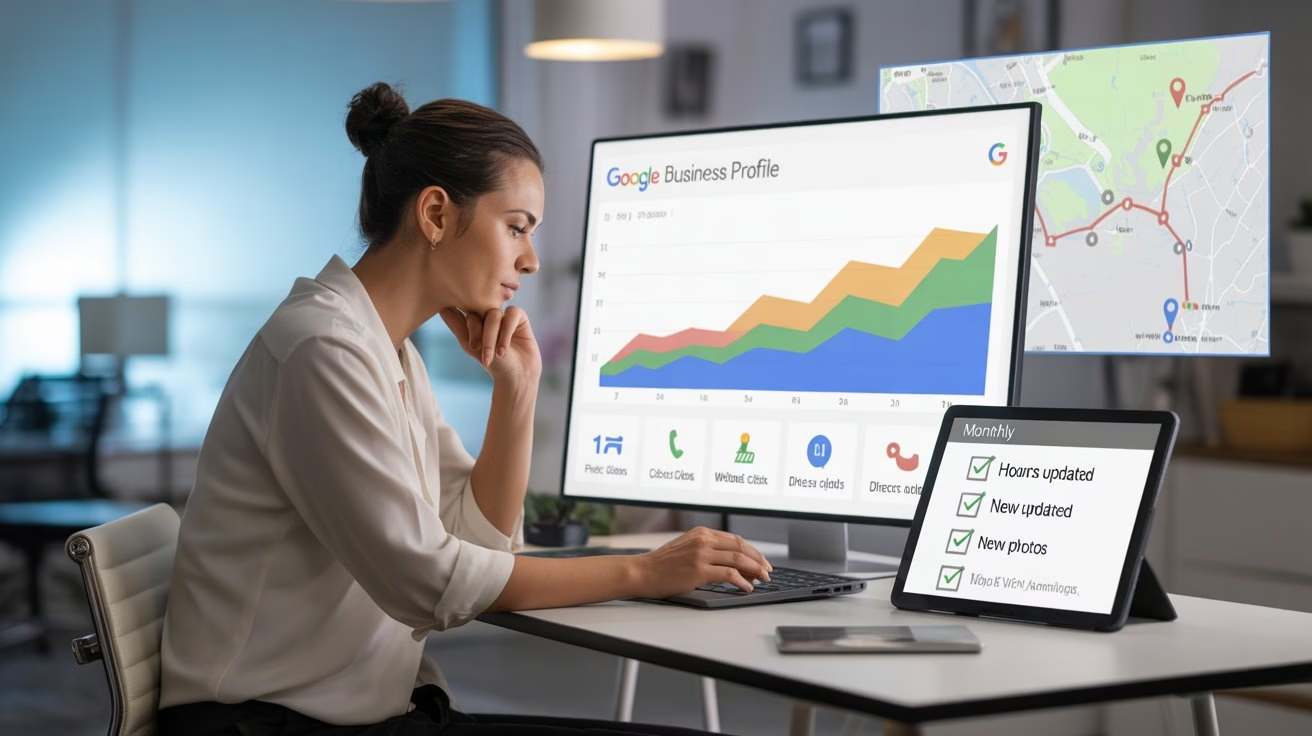
After setup, measurement keeps your profile on track. Google’s Insights section reveals how people discover and use your listing, and a short monthly audit keeps information fresh.
- Review the search terms that bring visitors:
Then, look at the queries that show your profile in the results. Then adjust your website content and Google Posts to support the phrases that already draw views, calls, and direction requests. The AI trading safety rules blog is a good example of content built around clear search intent in another niche.
- Monitor key actions like calls and clicks:
Notice how many people tap Call, Website, or Directions from your profile. Rising numbers usually mean your photos, posts, and reviews match what local users want to see.
- Run a 10-minute health check every month:
Confirm that NAP details are correct, hours reflect reality, and at least one recent photo or post appears on the profile. This quick routine stops outdated information from hurting reputation or rankings.
- Use insights to shape future marketing:
When you see strong interest from a location or service type, create more content around that demand. You can also track results in Google Search Console to see how profile-driven traffic interacts with your site pages.
Step-by-Step Google Business Profile Setup for Local Businesses
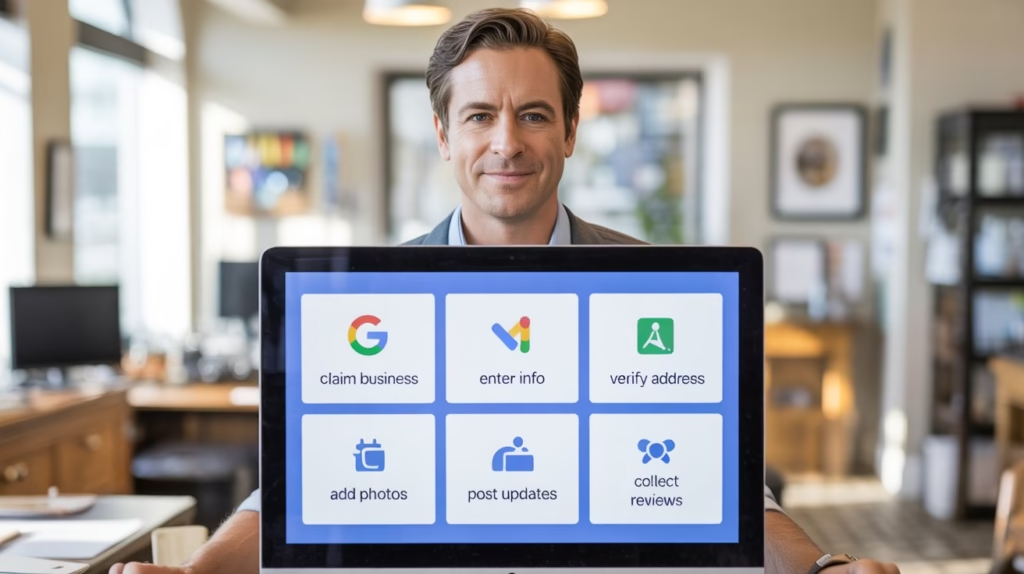
Local owners often feel confused when they see so many options inside the Google Business dashboard. This step-by-step Google Business Profile setup section keeps everything simple and walks through each action in a clear order. You start with basic details, then move into verification, photos, posts and reviews. Each small step makes your profile easier to trust and easier to choose in local search results.
- Create or claim your profile in Google Maps or Search: Search your business name, choose the existing listing if it shows up, or start a new profile from the Google Business Profile page.
- Add accurate basic details: Enter business name, primary category and contact information carefully so Google understands what you do and which customers you want to reach.
- Set your address or service area and complete verification: Choose a visible address for walk-in locations or select service areas for on-site services, then finish postcard, phone, or video verification.
- Fill out hours, website, and key attributes: Add opening hours, link your site, and choose attributes like “women-led” or “wheelchair accessible” so people know what to expect before they visit.
- Upload clear photos that match your brand: Add exterior, interior, team and product photos so customers instantly recognise your place when they arrive and feel comfortable choosing you.
- Publish your first update or offer: Use a short post to highlight a new service, discount or event, and guide people towards a call, booking, or visit.
- Ask for a few genuine reviews: Invite happy customers to share their experience and reply to each review so new visitors see that you stay active and care about feedback.
30-Day Google Business Profile Growth Plan
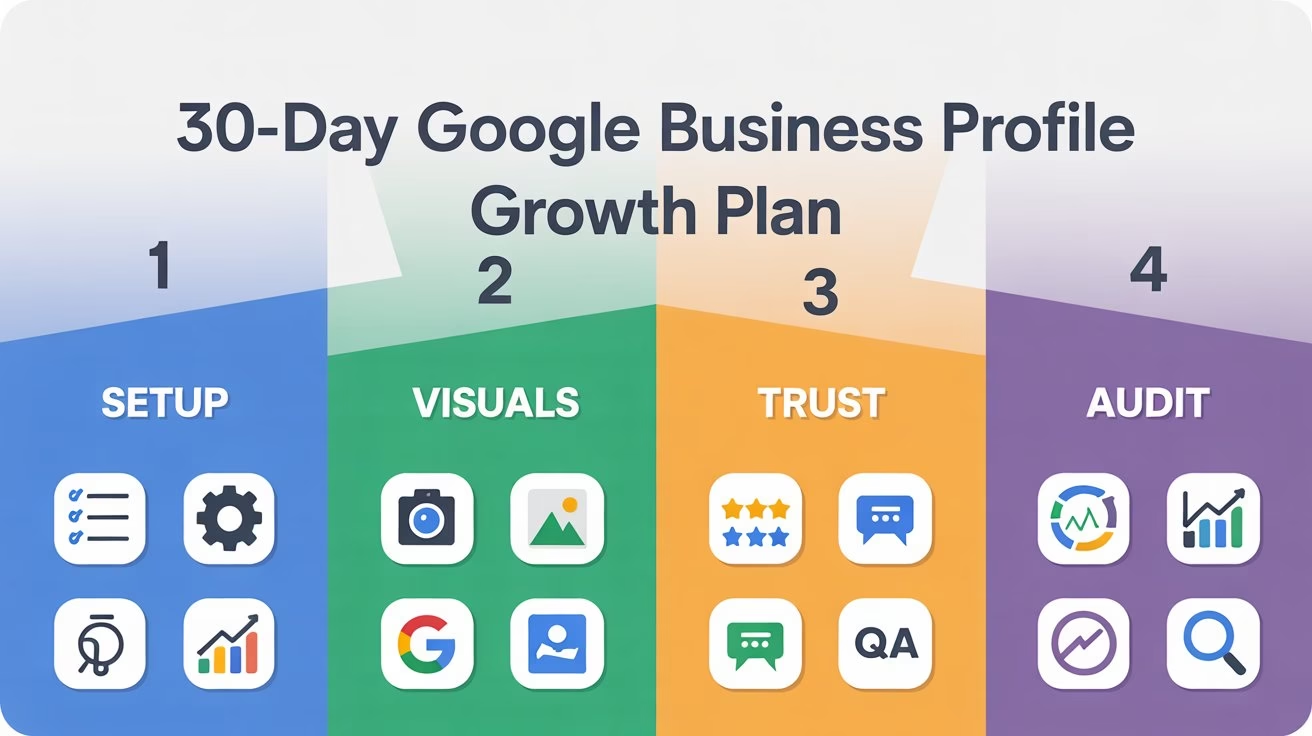
Many owners complete their Google Business Profile setup and then pause, unsure what to do next. A simple 30-day plan removes guesswork and turns a basic listing into a steady local growth channel.
- Week 1: Fix foundations and record a baseline:
During the first week, fill every core field, such as name, address, phone, categories, hours, and attributes. Then open Insights and note current views, calls, and direction requests. This baseline shows where you started before any changes.
- Week 2: Refresh visuals and publish helpful posts:
In the second week, upload clear exterior, interior, team, and product photos that match your current brand. Next, publish at least two posts that answer common questions or explain key services. These updates keep your profile active and useful.
- Week 3: Focus on reviews, Q&A, and messaging:
During week three, share your review link with recent satisfied customers and request honest feedback. At the same time, add answers to frequent questions in the Q&A section and turn on messaging if it fits your business. This mix builds social proof and opens new contact paths.
- Week 4: Compare Insights and refine your strategy:
In the final week, revisit Insights and compare them with your baseline. Look for changes in calls, clicks, and direction requests. Then keep the actions that moved the numbers up and adjust or drop the ones that did not help. The same data-driven thinking behind AI-powered trading strategies can also guide smart local SEO decisions.
Conclusion
A thoughtful Google Business Profile setup gives local customers a clear, confident picture of your business before they ever visit your website or doorstep. Accurate information, strong visuals, honest reviews, and steady updates work together to turn simple searches into real calls, visits, and bookings.
When you treat your Google My Business profile as a living asset and follow a simple 30-day plan, your presence aligns naturally with creating helpful, reliable, people-first content and AdSense Program policies. Over time, this consistent care supports Discover-friendly pages, avoids low-value content issues, and builds reliable growth for your local brand.
For readers who want to strengthen their website side along with their Google Business Profile setup, related guides on SEO tips for consistent Google rankings, liquid web design, and neuromarketing techniques make helpful next steps. These resources show how to turn search visibility into real engagement and sales.
FAQs
Is Google Business Profile free for all businesses?
Yes, creating and managing the profile is free. Costs only appear when you choose to run separate Google Ads campaigns.
Can a home-based business create a profile without showing the address?
Yes, service-area businesses can hide their street address and list only the regions they serve, which protects privacy while keeping them visible for local searches.
How long does verification usually take?
Timing depends on the method. Postcards may take several days, while phone, email, or video verification can finish more quickly when all details match.
How often should a business update its Google profile?
A light monthly update works well. Refresh photos, add at least one post, check hours, and respond to any new reviews or questions in the same session.
Does a strong Google profile replace the need for a website?
No, the profile and website support each other. The profile handles local intent, while your website explains services in depth and strengthens wider SEO strategies.
What type of photos work best on the profile?
Clear, well-lit images of the exterior, interior, team, and key products work best. Avoid dark, blurry, or outdated pictures that can confuse or disappoint visitors.
How many categories should a business choose?
One primary category and a few relevant secondary categories are usually enough. Extra, unrelated categories can confuse Google and reduce relevance for core searches.
Can multiple people manage the same profile?
Yes, you can add owners and managers with different access levels. This setup allows teamwork without sharing passwords or risking full control.
Do Google Posts help with rankings or only engagement?
Posts mainly support engagement and freshness. Better engagement builds trust, which can support visibility as part of an overall local SEO strategy.
What makes a profile look trustworthy to new visitors?
Consistent information, recent photos, clear service details, and polite review responses help a profile feel reliable. These signals give new visitors confidence to choose your business.
Do I need a physical address for a Google Business Profile?
You can list a physical address if customers visit you at a shop or office. Service-area businesses can hide the address and select the cities or areas where they travel to clients.
How long does Google Business Profile verification usually take?
Postcard verification can take a few days up to about two weeks. Phone, email or live video verification often finishes much faster, sometimes within minutes once Google approves the details.
How often should I update my Google Business Profile?
Check the profile at least once a week and follow your 30-day routine, adding fresh photos or posts, replying to reviews and keeping hours and contact details accurate.